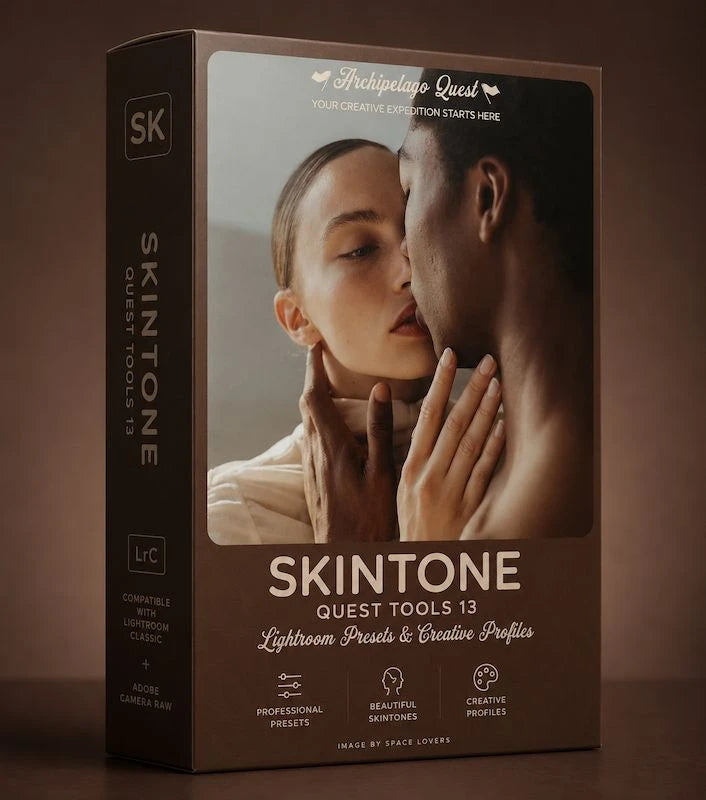
Archipelago Quest Tools 13 – Skin Tone Correction Lightroom Presets
Archipelago Quest Tools 13 – Skin Tone Correction Lightroom Presets
Instant digital download
- FormatAdobe Lightroom presets
- Works withAdobe Lightroom
- DeliveryDownload link right after checkout, also sent by email
Couldn't load pickup availability
In most edits, skin is the first thing to go wrong. Your subject moves into shade and looks grey, or you warm up the white balance and the cheeks turn orange. Archipelago Quest Tools 13 – Skintones is made to solve exactly these problems. These are corrective Lightroom presets, not a style applied to the whole photo. They only adjust the skin: they remove extra warmth, bring colour back to pale tones, calm down red cheeks, and even out areas where the light changed during the shoot.
They work well on fair, olive and deep skin tones, and they keep natural texture and true colour instead of making skin look waxy or plastic. Made for portrait photographers editing studio sessions, wedding galleries, lifestyle shoots and natural-light work where the light changes from shot to shot.
- Fixes uneven, grey or too-warm skin
- Balances warm and cool skin tones across a wide range
- Works with Lightroom Classic, Lightroom CC and Adobe Camera Raw (depending on the included format)
How to install
Lightroom Classic: in the Develop module, click + in the Presets panel and choose Import Presets.
Lightroom: open Edit → Presets, use the … menu and choose Import Presets.
Every photo is different, so fine-tune exposure and white balance after applying a preset.
Delivery
This is a digital product and nothing is shipped. After payment you get a download link on the order confirmation page, and the same link is emailed to you.
Need help?
If something does not work as expected, contact us with your order number and we will help you out.